The MX Master 4 is one of the most capable productivity mice you can buy, if you set up Actions Ring and per-app shortcuts. It's also heavier than the 3S, and the grip feels less secure. Worth it as your first MX Master; if your 3S still works, there's no rush to upgrade.
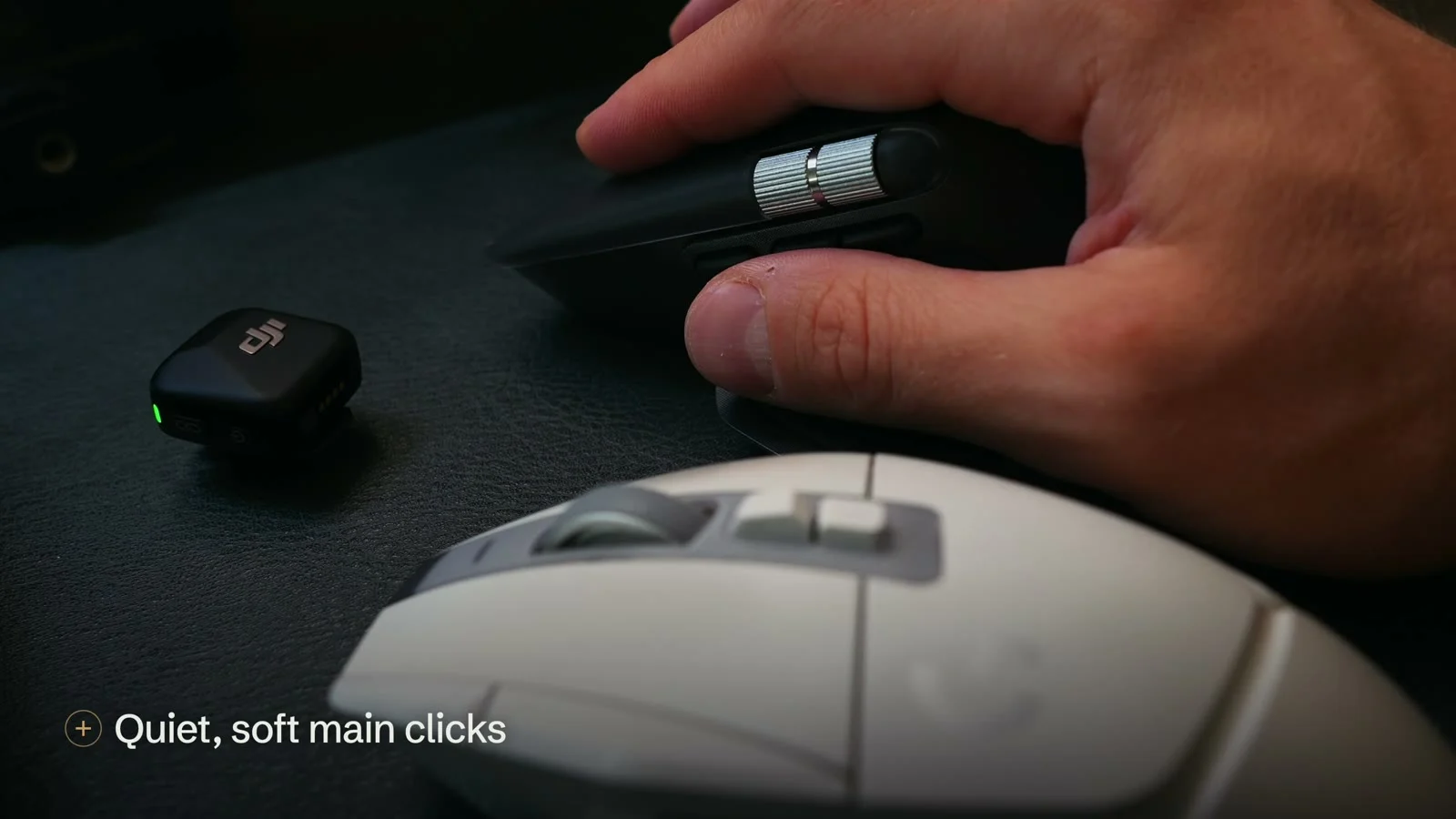
- Very quiet, soft main clicks
- MagSpeed scroll wheel plus a horizontal thumb wheel for timelines
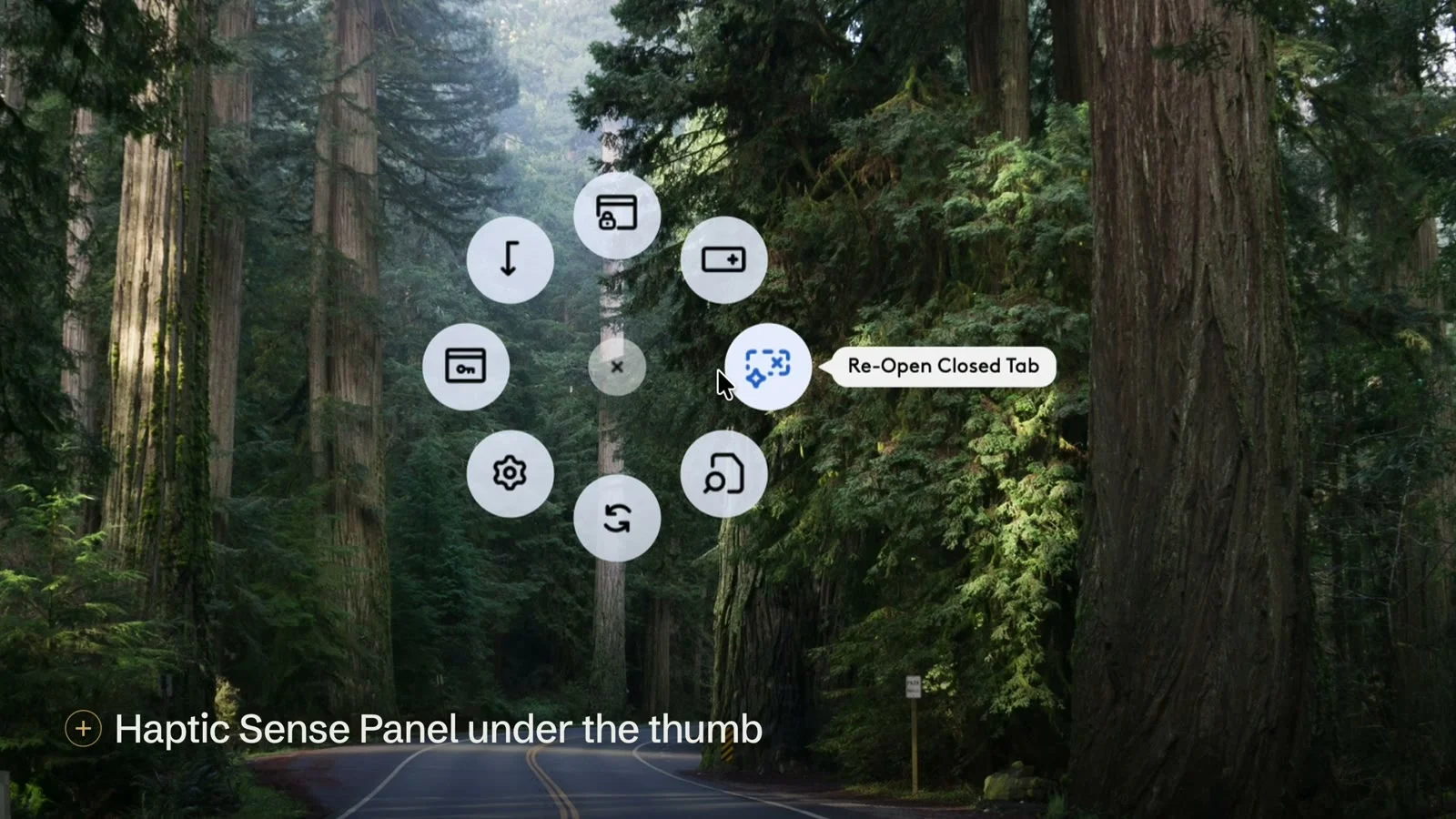
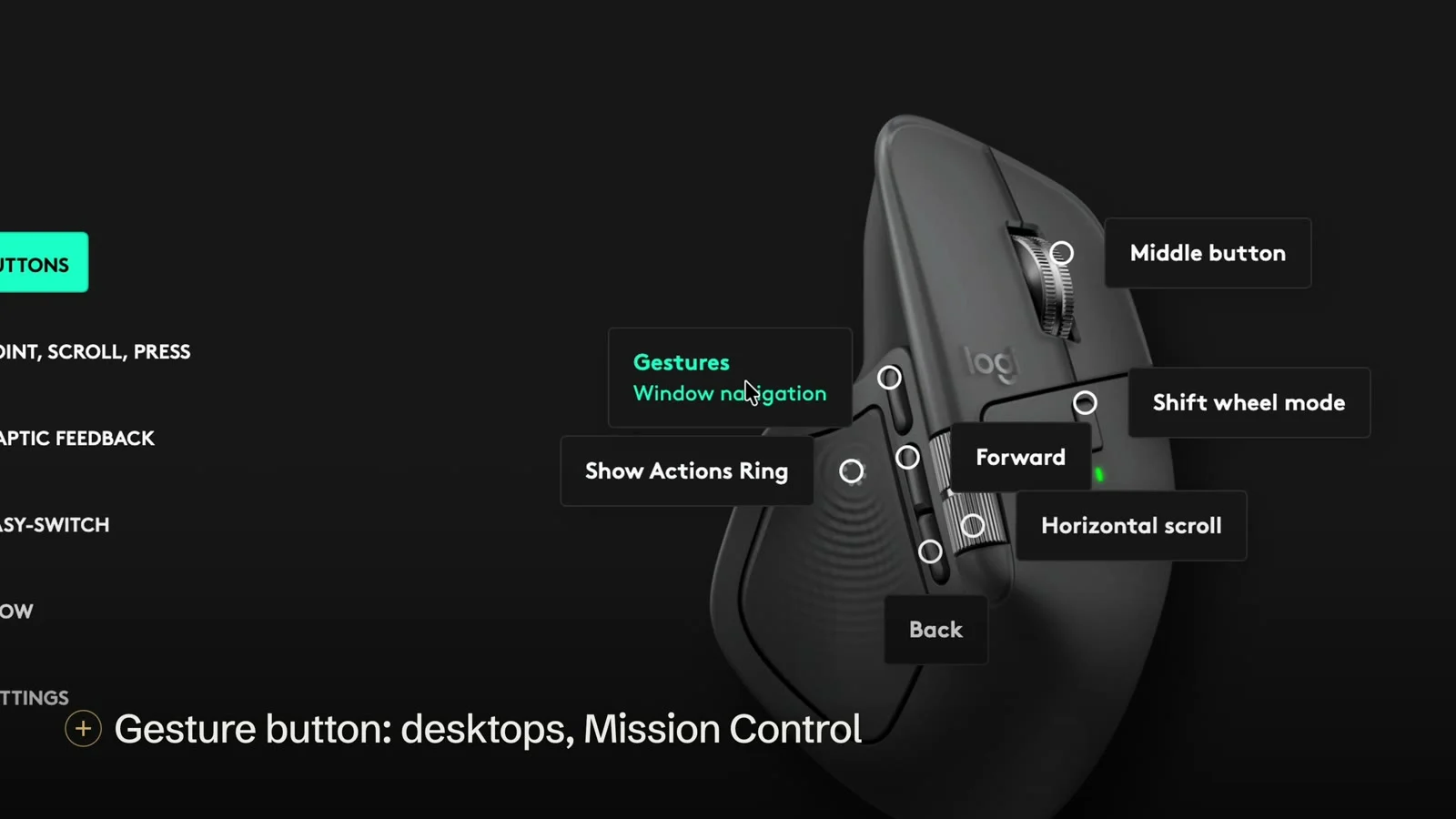
- The haptic panel opens Actions Ring, so shortcuts sit next to the cursor
- Different buttons, gestures and Actions Ring menus per app in Logi Options+
- Logitech Flow moves the cursor, copy-paste and files between a Mac and a PC
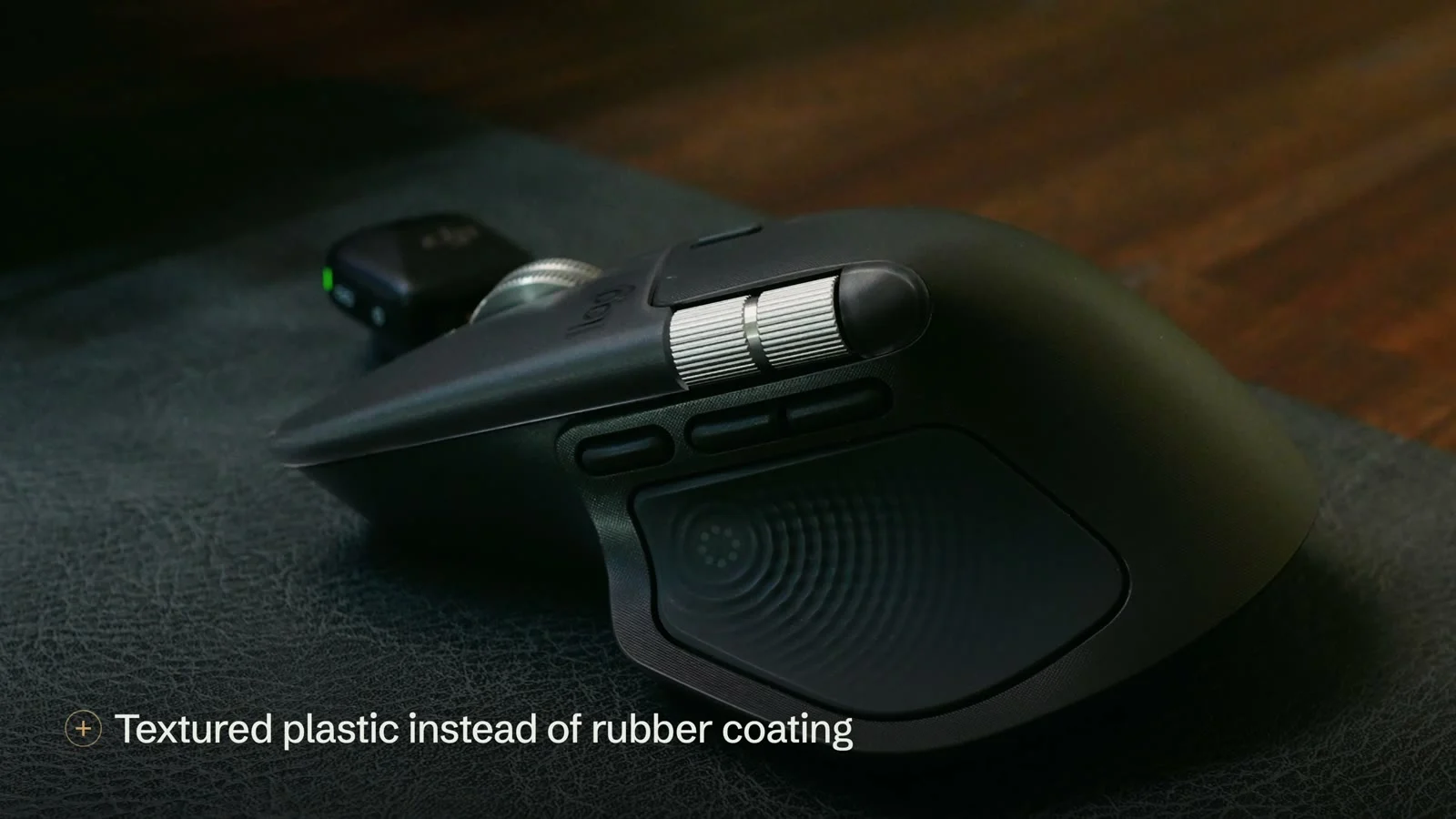
- Textured plastic replaces the rubber coating that wore off on my 3S
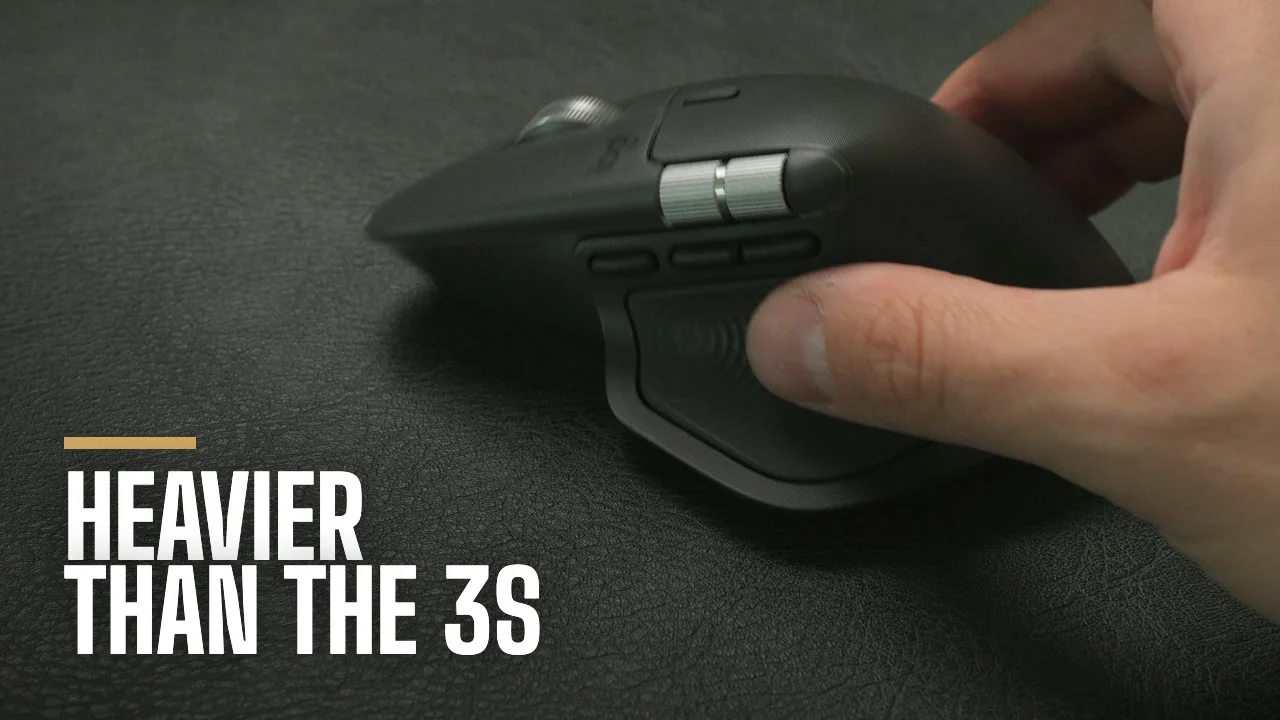
- 150 g, heavier than the 141 g 3S, and it takes more effort to move
- The grip feels less secure than on the 3S
- Too early to say how the silicone side grips will age
- Setup takes time: Chrome needed a permission and an extension, and the Final Cut Pro plugin wouldn't install
- No charging cable in the box
| Weight | 150 g (5.29 oz) |
|---|---|
| Size | 128.15 × 88.35 × 50.8 mm |
| Sensor | Darkfield, 200–8,000 DPI, tracks on glass 4 mm and thicker |
| Wheels and buttons | MagSpeed wheel with SmartShift, thumb wheel, gesture button, Haptic Sense Panel |
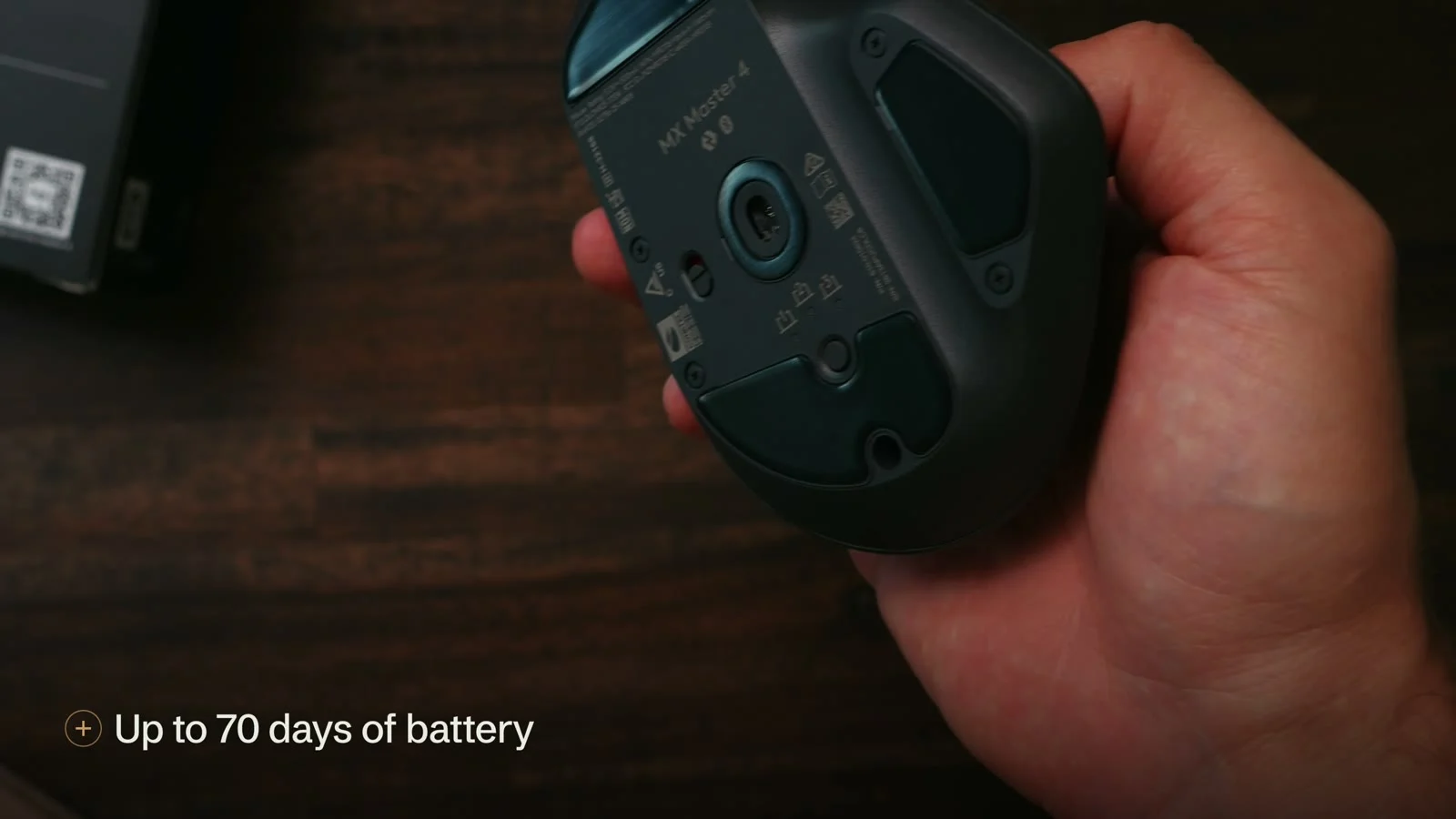
| Battery | 650 mAh, up to 70 days, USB-C charging, 1 minute gives 3 hours |
| Connection | Bluetooth LE 5.1 or Logi Bolt USB-C receiver, up to 3 devices |
| Works with | Windows 10 and 11, macOS 13+, Linux, ChromeOS |
| In the box | Mouse, Logi Bolt USB-C receiver, documentation (no cable) |
| Price | $119.99 (Logitech, Graphite) |
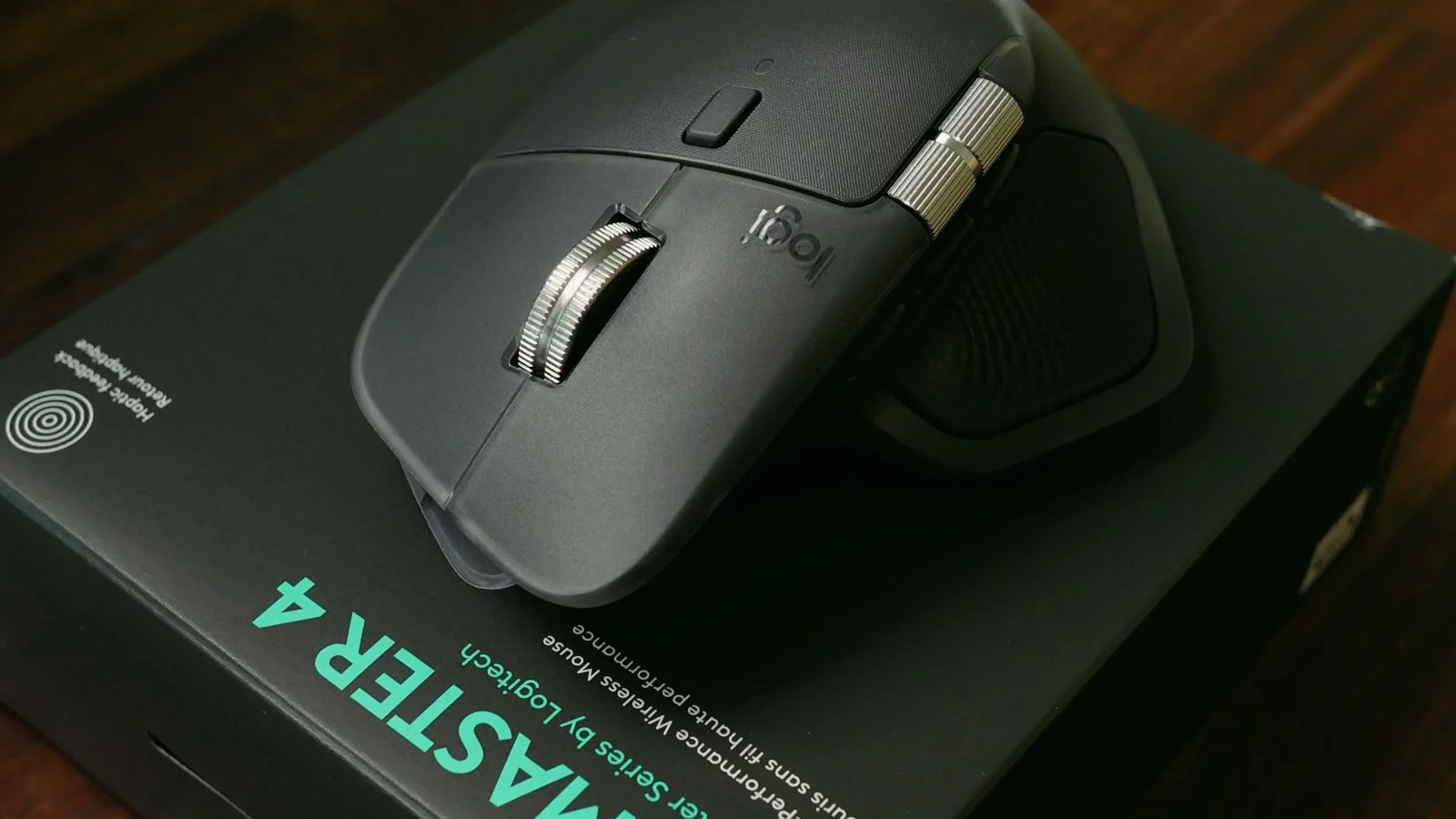
I've used the Logitech MX Master 3S, and I had a love-hate relationship with it. Great features and a comfortable shape, but the rubber coating started wearing off. So when Logitech released the MX Master 4, with new materials, haptic feedback, more buttons and even more customization, I switched.
Here's the problem. After moving to the new one, I'm not sure I like how it feels in my hand as much as the old 3S. But there's one new feature that might change the way I work.
I bought this mouse with my own money. Logitech didn't sponsor this review. The Amazon link below is an affiliate link.
Price
Logitech lists the MX Master 4 at $119.99. When I checked on November 22, it was $109.99 on Logitech's site for Black Friday. You can also find it on Amazon.
Weight and grip
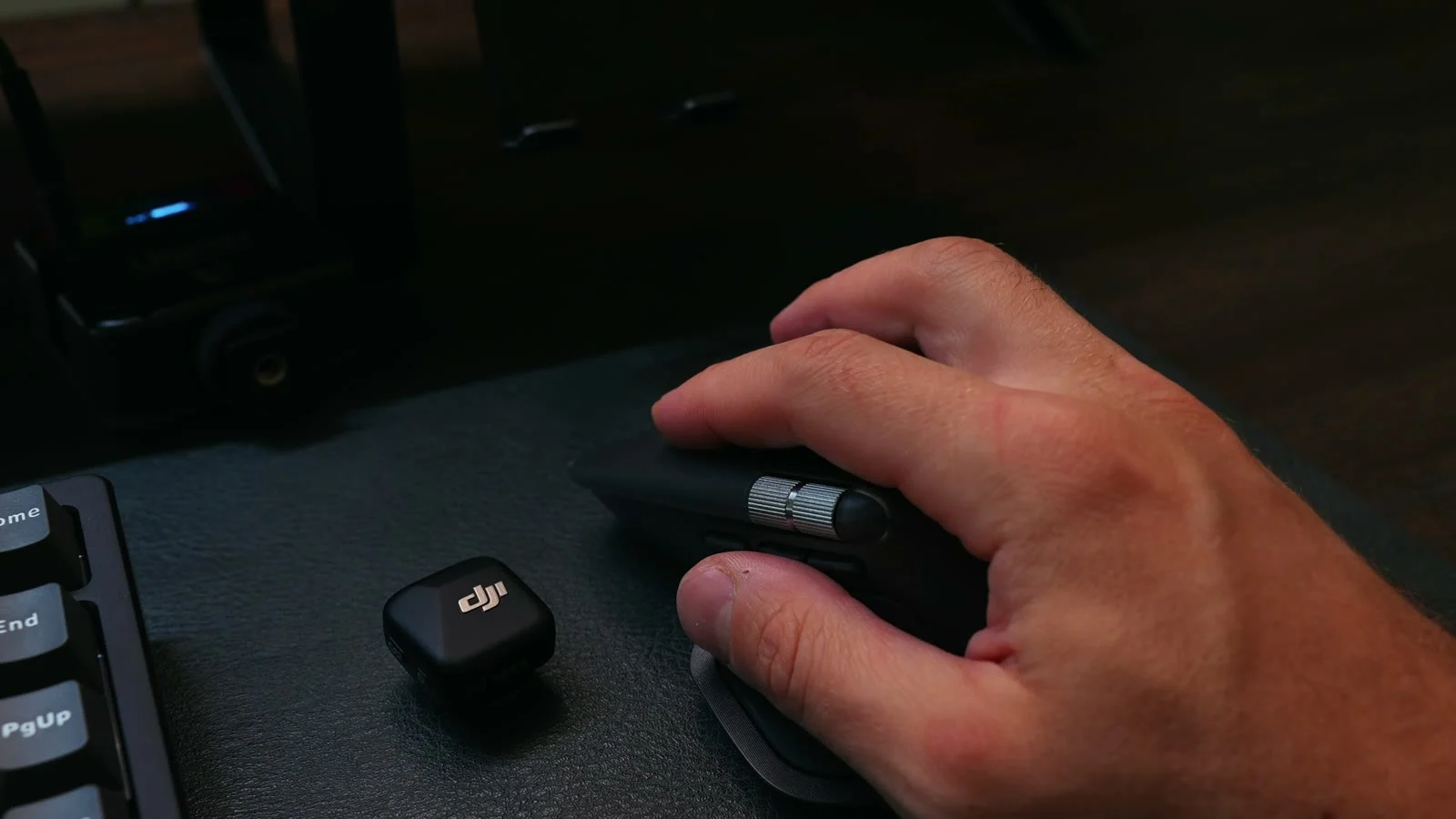
The first thing I noticed is the weight. The MX Master 4 weighs 150 grams. My MX Master 3S is 141 grams. The numbers don't sound dramatic, but when you move a mouse around all day, you notice the difference. My white G502 is about 100 grams, and it glides across the desk much more easily. The MX Master 4 takes a little more effort, especially without a good mouse pad.
Something about the new grip feels different too. The shape is still ergonomic, but I don't feel as secure holding it as I did with the 3S. It's almost like the mouse wants to slip out of my hand a little. Maybe I'll get used to it. Right now I prefer how the previous generation felt, which is strange when you pay for the newer model.
Materials, buttons and scrolling
Logitech needed to fix the materials, and it did. Most of the old rubberized coating is gone, replaced with textured plastic. I think that's a smart move. My 3S had rubber wearing off, and my G502 developed a similar problem around the grip. The G502 still worked perfectly, but it looked terrible.
The MX Master 4 still has soft silicone grips on the sides, so we'll see how those hold up. I wouldn't say the new materials feel more premium. They feel different.
The main buttons are excellent: very quiet, soft and pleasant to click. The MagSpeed scroll wheel is still fantastic, and you also get the horizontal thumb wheel, which I find useful for timelines and creative work.
Haptic panel and Actions Ring
Logitech added a haptic panel under your thumb. When you press it, you feel a small vibration, and an on-screen menu called Actions Ring opens around the cursor.
At first I thought it was another feature I'd use twice and forget about. After playing with it, I started to see the point. You put shortcuts right next to your cursor instead of hunting through menus: open apps, take screenshots, trigger commands, or set up different layouts depending on what you're working on. The haptic feedback is subtle, but it gives you a physical response when you interact with the mouse.
One tip. I kept pressing the panel straight down with my thumb, and it felt awkward. It's much easier to press it sideways. Maybe that's obvious to everyone else, but it took me a while, and after that the whole thing made a lot more sense.
Customization in Logi Options+
Most of the value is in Logi Options+. You can customize almost everything. A separate gesture button lets you hold it and move the mouse to switch desktops, open Mission Control or use App Exposé on a Mac.
You can also assign completely different actions per application: one set of shortcuts for Chrome, another for Photoshop, and a different setup for video editing. You can build custom Actions Ring menus, use Smart Actions and install plugins from Logitech's marketplace.
Setup took me some time. When I first configured Chrome, some actions didn't work. I had to grant a permission in Chrome and install a separate extension, and after that everything worked. I also couldn't get the Final Cut Pro plugin to install. So the potential is excellent, but expect to spend a while getting your setup the way you want it.
If you don't plan to customize any of this, you're missing the main reason to buy the MX Master 4.
Logitech Flow
Another feature I like is Logitech Flow, and it matters if you have more than one computer. Say you've got a Mac and a Windows PC on the same desk. You move the cursor to the edge of one screen, and it continues onto the other computer. You can also copy and paste text and images, and transfer files between them.
You need Logi Options+ on both computers and a compatible network setup. Once it's configured, it's very convenient. Flow isn't exclusive to the MX Master 4. Logitech has had it for years, but it's still one of my favorite features in their productivity lineup. I like having it here, but I wouldn't count it as a reason for a 3S owner to upgrade.
MX Master 4 for Mac, battery and connectivity
Logitech sells a separate MX Master 4 for Mac, and I don't quite understand why. I'd buy the regular version. It already works with macOS, and it comes with a Logi Bolt USB-C receiver. According to Logitech, the Mac version ships with only the mouse and documentation, no receiver. In the video I hold up my older USB-A Logi Bolt receiver; the one in the MX Master 4 box is USB-C. Unless you want the Mac-specific colors, I don't see much reason to choose it. I also prefer the more consistent color scheme of the regular version.
Both versions connect over Bluetooth, pair with up to three devices, and Logitech claims up to 70 days of battery life. I haven't tested that claim myself. Charging is over USB-C, and Logitech doesn't include a cable. The 8,000 DPI sensor works on glass, as long as it's at least 4 mm thick.
Don't buy it for fast competitive games. If you're used to something like a G502, the MX Master 4 is a very different experience, built for productivity work.
MX Master 4 vs MX Master 3S: should you upgrade?
Functionally, this is one of the most capable productivity mice you can buy. The quiet clicks are excellent, the scrolling is great, and Actions Ring opens up useful options.
Physically, I'm not convinced Logitech improved everything. The MX Master 4 is heavier, the grip feels different, and the 3S was a little more comfortable in my hand. I'm also curious how the new materials will hold up after a year or two.
If you're buying your first MX Master and you spend a lot of time at your computer, it's worth considering. At $119.99 it isn't cheap, but if you use the customization features, the price makes sense. If you already have a 3S that works well, I wouldn't rush to replace it.
Logitech made the mouse smarter. I'm just not sure they made it more comfortable.
FAQ
Is the MX Master 4 more comfortable than the MX Master 3S?
Not for my hand. The MX Master 4 is 9 grams heavier, and its grip feels less secure. I find the 3S more comfortable.
Is it worth upgrading from the MX Master 3S?
Only if you'll use Actions Ring and per-app shortcuts. If your 3S works well, I wouldn't rush to replace it.
Do I need the MX Master 4 for Mac to use it with a Mac?
No. The regular version works with macOS and comes with a Logi Bolt USB-C receiver. The Mac version has no receiver in the box, so I'd only pick it for its colors.
Is the MX Master 4 good for gaming?
Not for fast competitive games. It's heavy and built for productivity work.
Logitech MX Master 4