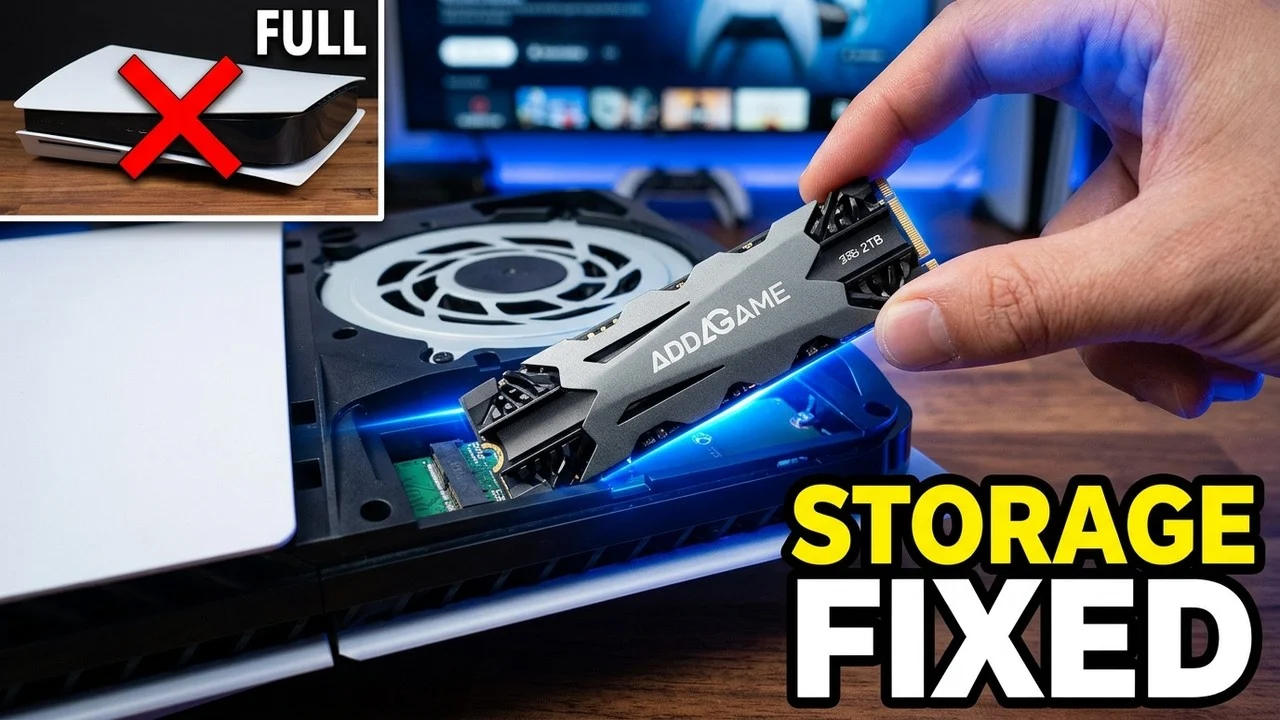
Adding an M.2 SSD is the easiest way to stop deleting PS5 games. It took one screwdriver, and the console formatted the drive on its own. Get at least 2TB with a heatsink, and check Sony's size and speed limits first.
- No more deleting games to make room
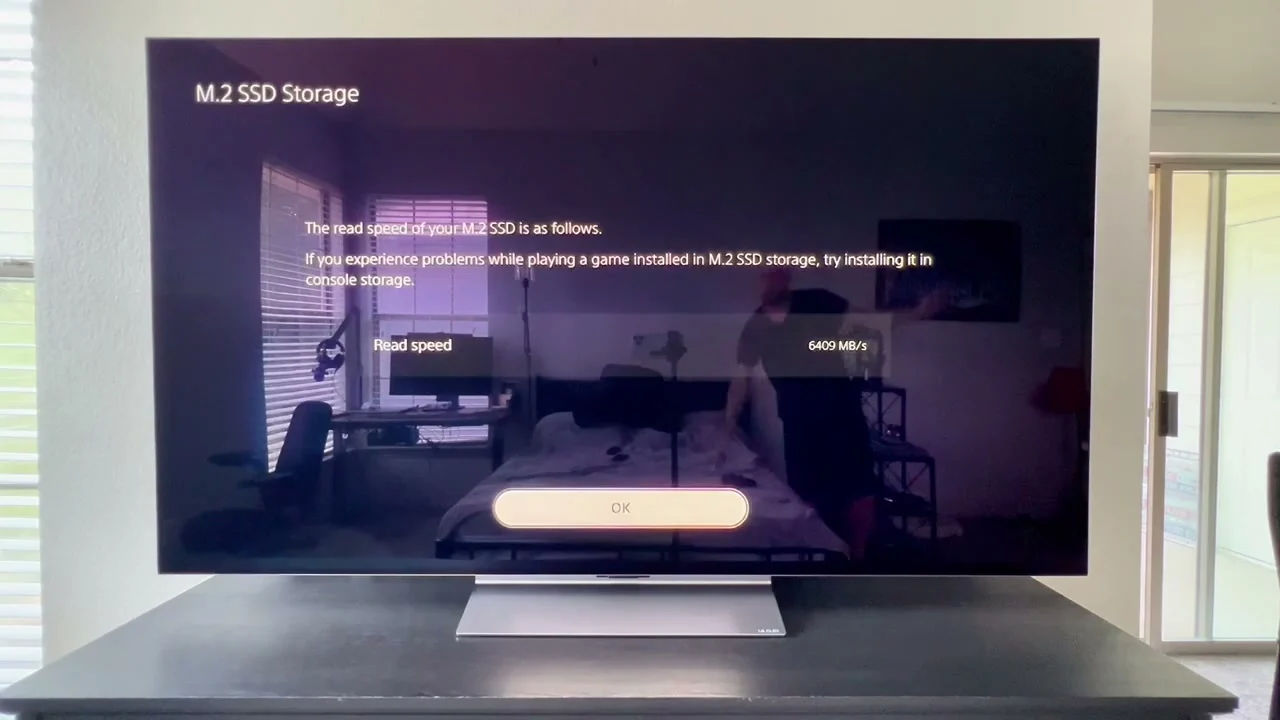
- The PS5 measured my 2TB drive at 6,409 MB/s read
- Simple install with one screwdriver
- The PS5 formats the drive itself
- You can move games between the internal storage and the SSD
- The drive needs a heatsink or a cooling plate
- 2TB drives with heatsinks cost $329 to $480 when I checked
- The plastic cover clips need lining up
| Console | PS5 Slim (1TB) |
|---|---|
| SSD I used | addlink AddGame A95 2TB, PCIe Gen4 x4, with heatsink |
| Measured read speed | 6,409 MB/s (PS5 check after formatting) |
| Sony's requirements | PCIe Gen4 x4 M.2 NVMe, 250 GB to 8 TB |
| Sizes | 2230, 2242, 2260, 2280, 22110 |
| Max size with heatsink | 25 mm wide, 11.25 mm thick |
| Recommended read speed | 5,500 MB/s or faster |
| Tools | A Phillips screwdriver |
The PS5 Slim comes with 1TB of storage, and these days that's not much. Big games easily take more than 100GB each, so after a few installs you're deleting one game to make room for the next. The fix is an M.2 SSD in the PS5's expansion slot. I added a 2TB drive to mine, and it's a simple job. Here's how I did it.
I bought the SSD myself. The Amazon links below are affiliate links.
How much storage to get
I'd buy at least 2TB, or 4TB if you keep a lot of games installed. Sony supports drives from 250GB to 8TB, but anything small fills up just as fast as the internal storage.
Which SSDs work in a PS5
Sony's requirements are specific, so check them before you buy:
- Interface: PCIe Gen4 x4 M.2 NVMe SSD.
- Capacity: 250GB to 8TB.
- Size: 2230, 2242, 2260, 2280 or 22110.
- With the heatsink: up to 25 mm wide and 11.25 mm thick.
- Speed: Sony recommends 5,500 MB/s read or faster.
The drive also needs cooling. There are two types of SSDs: ones that come with a heatsink and ones without. The easy option is a drive with a heatsink already on it, so you don't have to fuss with anything. If you like to tinker, you can buy the SSD and a heatsink separately and put them together yourself.
How to install an SSD in a PS5 Slim
Before you start, update the PS5 system software, turn the console off and unplug it. You only need a Phillips screwdriver.
Step 1: Take off the side cover
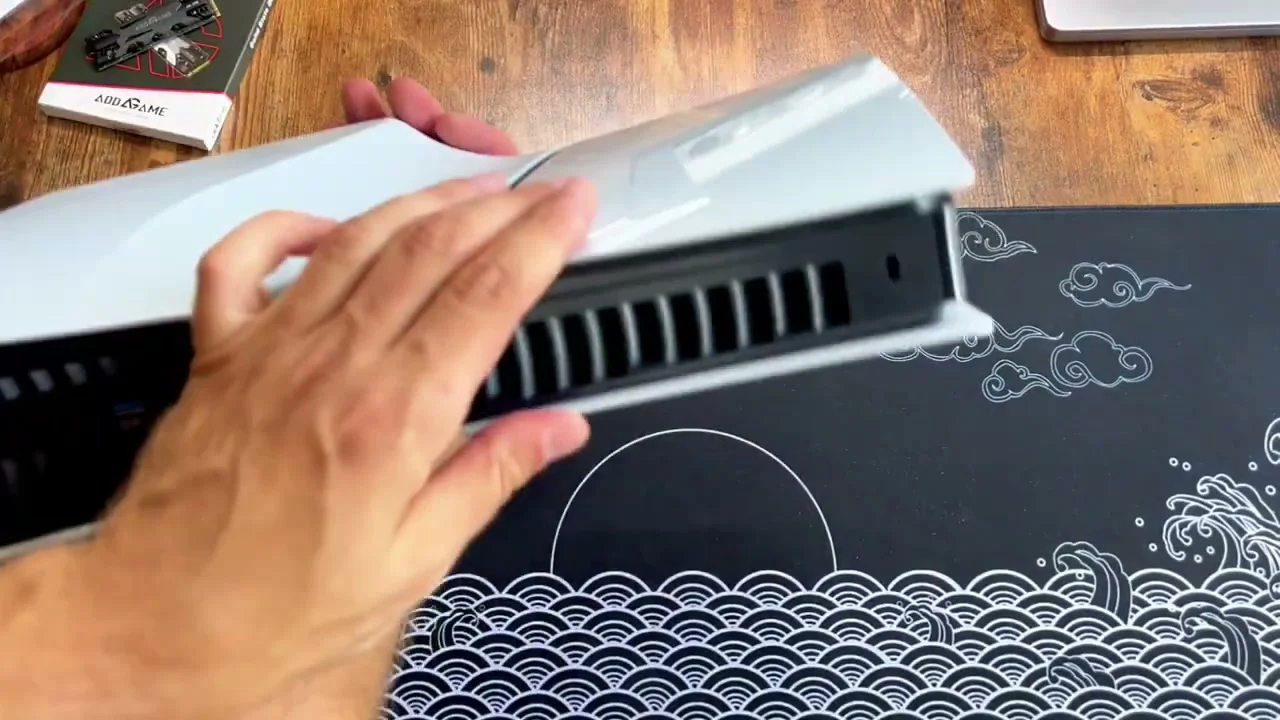
Lay the console down and pull the plastic panel up from the corner. It takes a firm pull, but don't be scared, it's designed to come off.
Step 2: Remove the slot cover
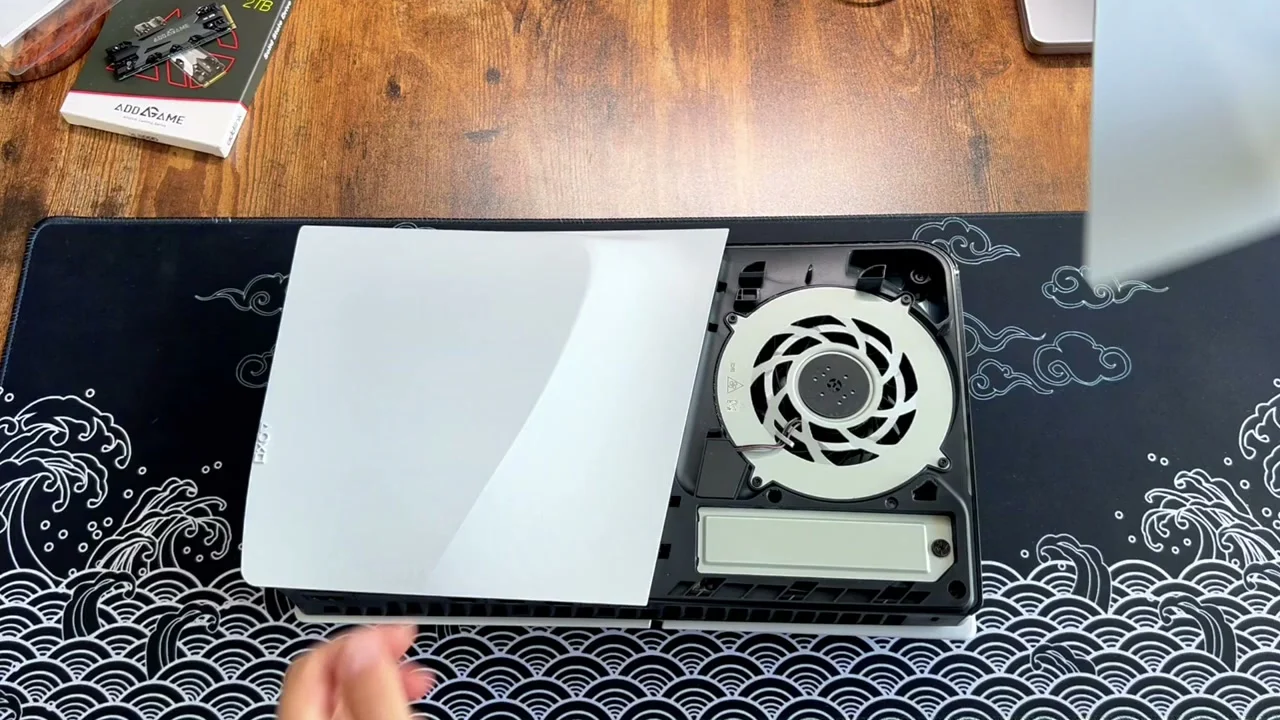
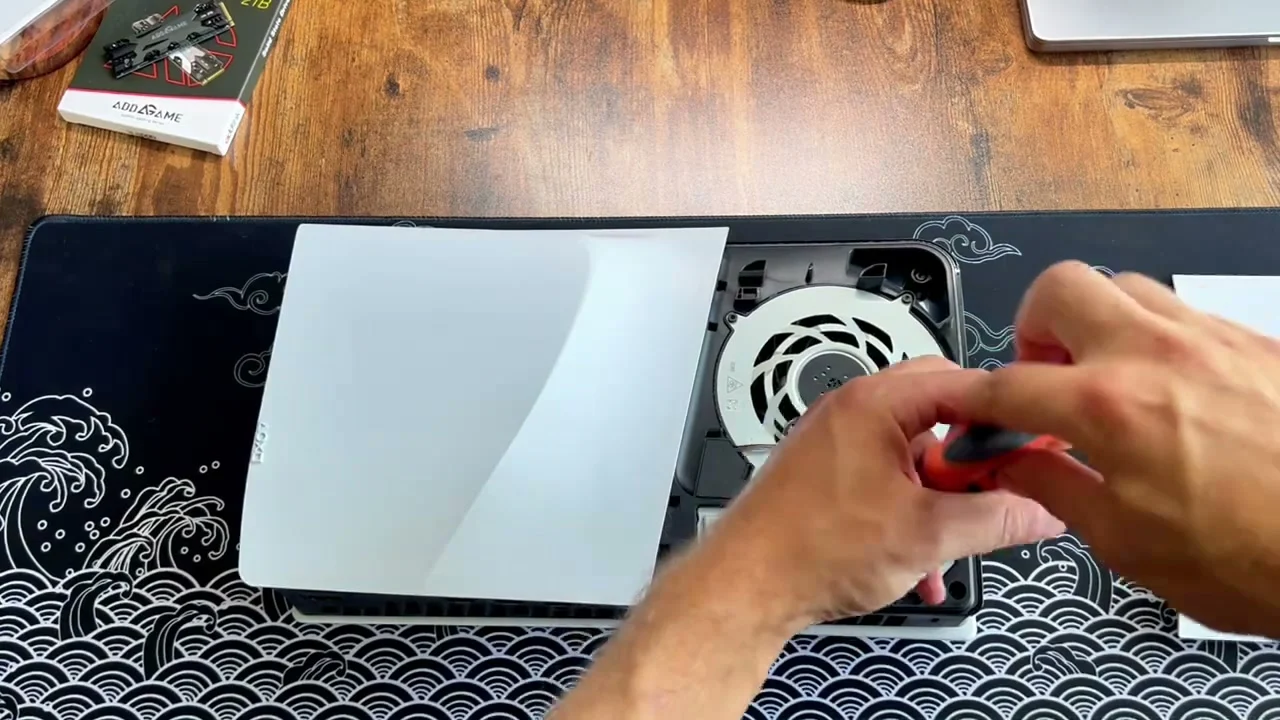
Behind the plastic panel there's a metal plate held by a single screw. Take the screw out, and the plate comes right off.
Step 3: Move the screw and spacer to your SSD's length
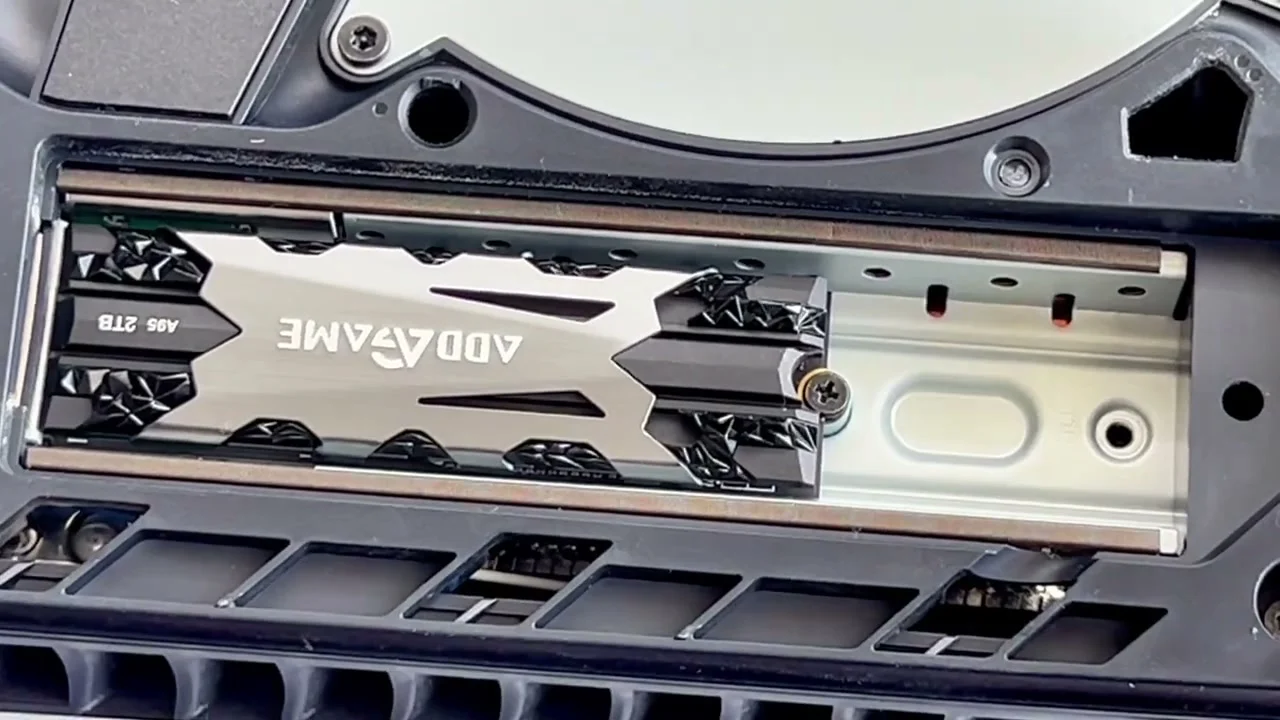
Check the size of your SSD. In the slot there's another screw with a small metal ring, the spacer. Take them out and hold on to the spacer: you need it. Put it in the hole that matches your drive's length.
Step 4: Insert the SSD
Gently push the SSD into the slot, then hold it down with the screw and spacer you set aside.
Step 5: Close everything up
Put the metal cover back on and fasten its screw. Then snap the plastic cover back into place. Make sure the clips at the bottom line up. It didn't click on my first try, so take a second look if it doesn't sit flat.
Step 6: Format the SSD
Plug the console back in and turn it on. The PS5 shows a formatting guide for the new drive. Follow it, and the storage is ready to use. After formatting, the PS5 measured my drive's read speed at 6,409 MB/s, above Sony's recommended 5,500 MB/s.
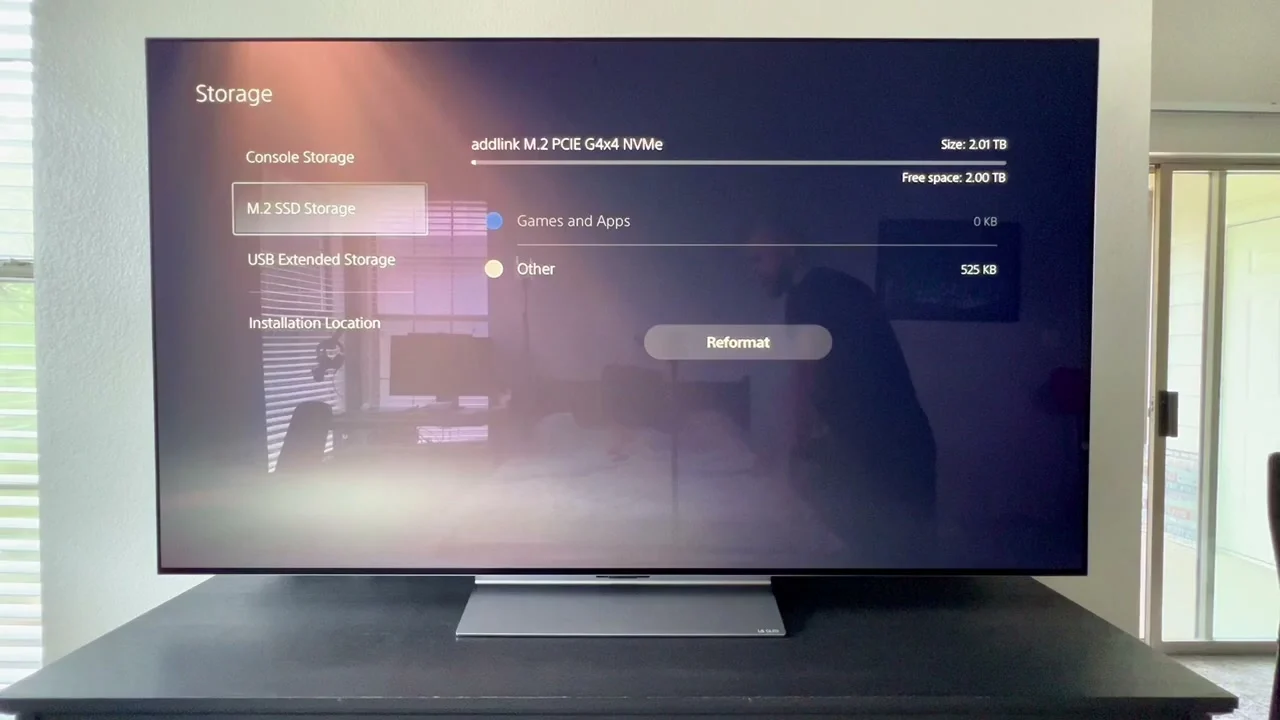
In the storage settings, the new drive showed up as 2.01TB, next to the console's own storage.
Which SSD I used, and which to buy now
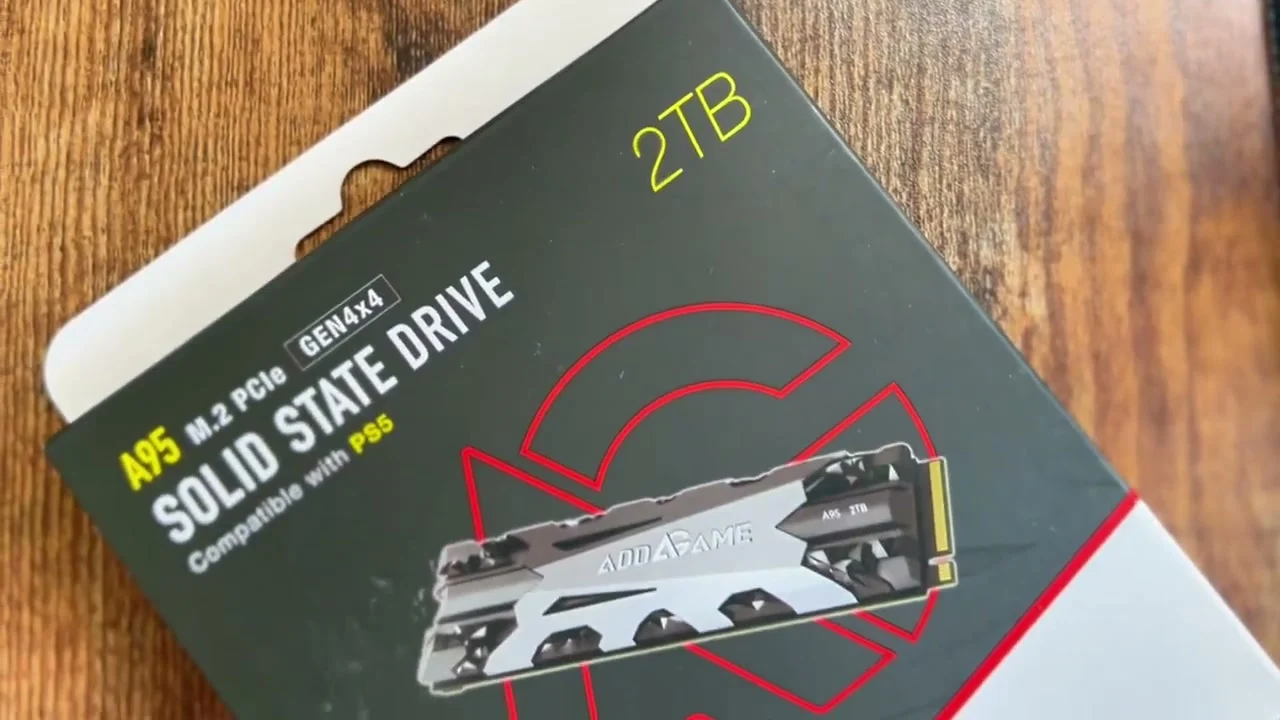
I went with a 2TB addlink AddGame A95 with a heatsink. It had a decent speed and a price that didn't hurt. I couldn't find the A95 on Amazon anymore when I checked on November 23, so here are two current options with heatsinks. I haven't tested either of them:
- [Addlink A93 2TB with heatsink](https://link.amazon/B0ckHQFu1): listed for PS5, up to 7,400 MB/s read, $329.37 when I checked.
- [WD_BLACK SN850P 2TB](https://link.amazon/B00Y5RxOf): officially licensed for PS5, with a heatsink, up to 7,300 MB/s read, $479.99 when I checked.
Both are above Sony's recommended 5,500 MB/s. SSD prices move a lot, so check the current price before you buy.
FAQ
Does the PS5 SSD need a heatsink?
Yes. Sony says the drive needs a cooling structure, such as a heatsink or a heat transfer sheet. The simplest option is an SSD with a heatsink already installed.
What size SSD should I get for PS5?
I'd get at least 2TB. Big games take more than 100GB each, and Sony supports drives up to 8TB.
Do I have to format the SSD?
Yes, but the PS5 does it for you. After you install the drive and turn the console on, it shows a formatting guide.
Which PS5 SSD speed do I need?
Sony recommends 5,500 MB/s read or faster on a PCIe Gen4 x4 M.2 NVMe drive.
Addlink A93 2TB with heatsink
WD_BLACK SN850P 2TB for PS5