A big, cost-effective performance jump for power users who are comfortable opening the laptop. Go big on the primary SSD: the second slot is hard to reach.
- Big performance jump for multitasking and load times
- Proven parts from Kingston and Samsung
- 2TB and 64GB RAM end daily storage juggling
- Needs careful manual work
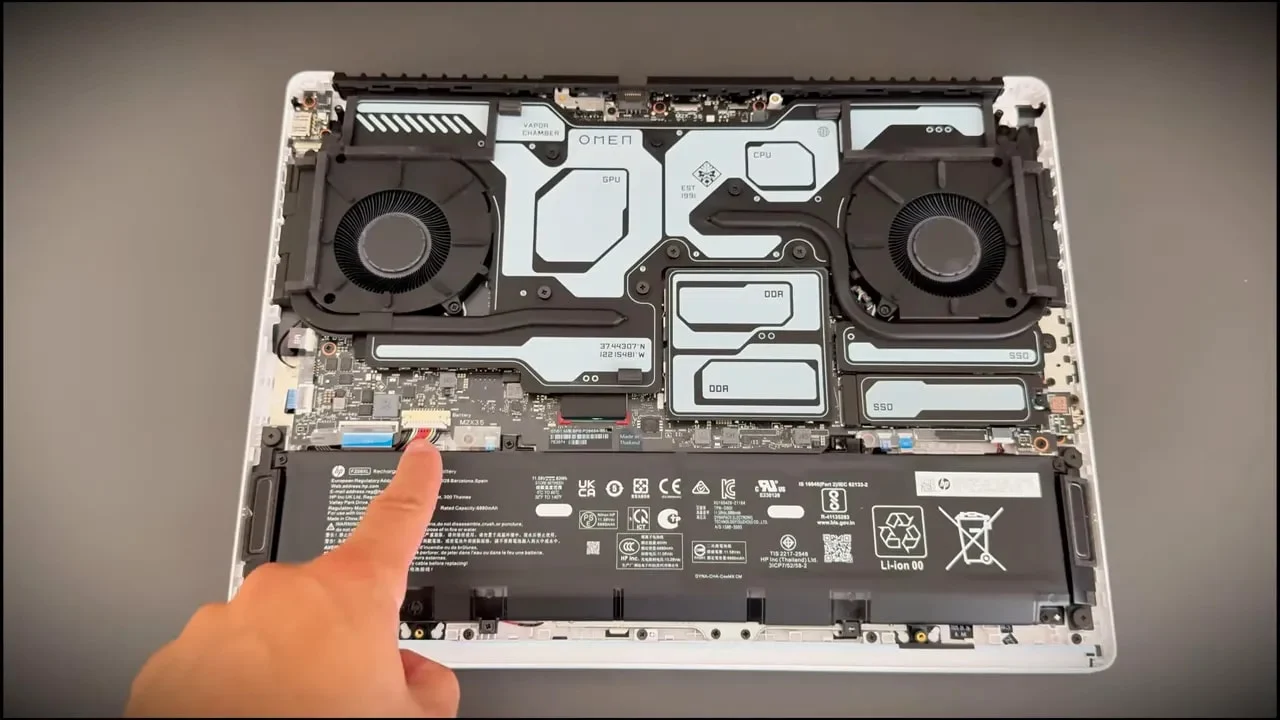
- The second SSD slot is hidden under the cooler
- Opening the laptop may affect the warranty
| Laptop | HP Omen Max 16 (Core Ultra 9, RTX 5080) |
|---|---|
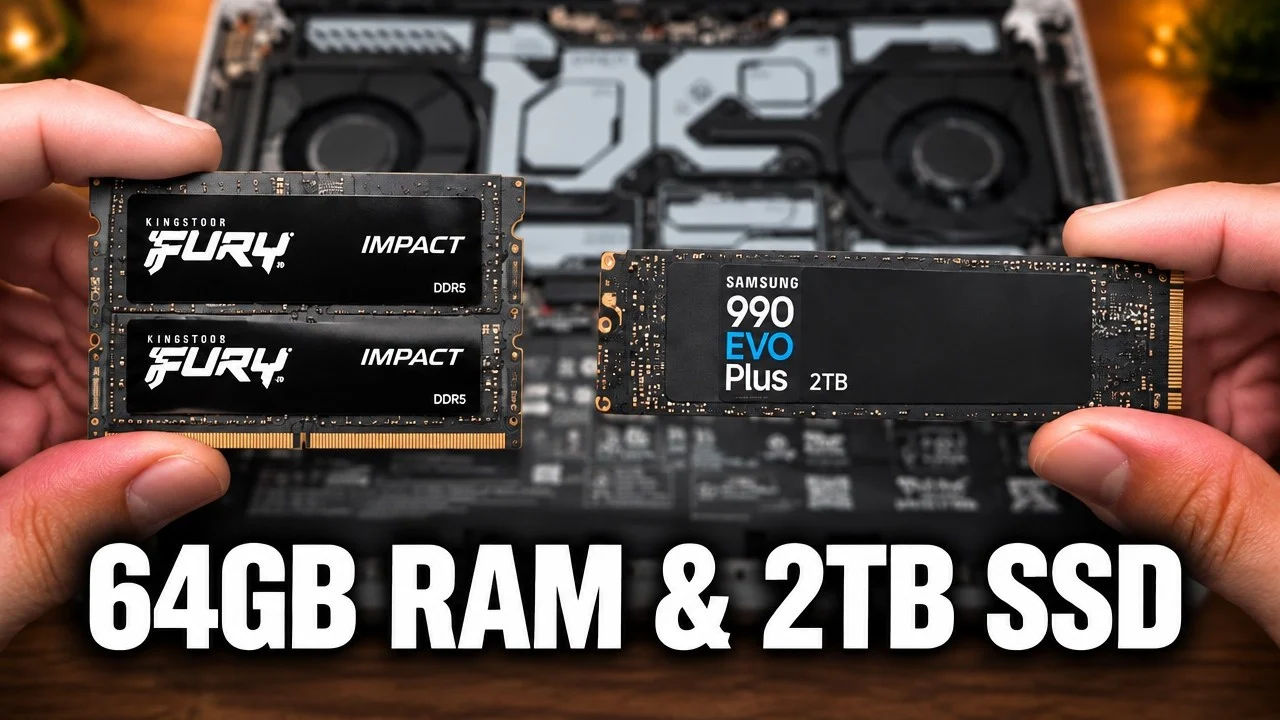
| Memory | Kingston FURY Impact DDR5, 64GB (2 × 32GB), 5600 MT/s |
| Storage | Samsung 990 EVO Plus, 2TB NVMe |
| Second M.2 slot | Behind the cooling assembly |
| Check after upgrade | Samsung Magician, CPU-Z |
Howdy partners. If you own an HP Omen Max 16 gaming laptop and you're thinking about performance, then upgrading the RAM and storage is one of the most rewarding things you can do without buying a new machine. I recently upgraded mine with Kingston FURY DDR5 32 GB memory and a Samsung 990 EVO Plus SSD 2TB M.2, and this is a practical, no-nonsense walkthrough plus a product review of those components and the experience.
Why Bother Upgrading?
The stock Omen Max 16 with its Intel Core Ultra 9 processor and NVIDIA GeForce RTX 5080 GPU is fine for basic use, but if you want snappier app loads, better multitasking, and larger, faster game installs, then upgrading makes an immediate difference. I chose the Kingston FURY Impact 64GB (2x32GB) 5600MT/s DDR5 and the Samsung 990 EVO Plus 2TB because they balance performance, reliability, and price.
What I upgraded (specs)
- Memory: Kingston FURY Impact DDR5 — 64GB (2x32GB) at 5600MT/s. This is high-capacity, low-latency memory tuned for modern DDR5 platforms.
- Primary Storage: Samsung 990 EVO Plus NVMe SSD — 2TB. One of the fastest consumer PCIe 4.0 drives with excellent sustained performance.
- Target: HP Omen Max 16 (user-accessible SO-DIMM slots and M.2 chassis design).
What to Expect After the Upgrade
You'll notice faster app launches, smoother multitasking, and quicker file transfers. A roomy 2TB drive means you're done juggling storage space, and 64GB of RAM means zero worries about memory saturation when you have thirty browser tabs open, Discord running, and a game rendering in the background.
Step-by-Step: Opening and Upgrading HP Omen Max 16
I'll keep this simple. These are the steps I followed, and they're safe for anyone comfortable with basic laptop internals.
Power Down and Prep
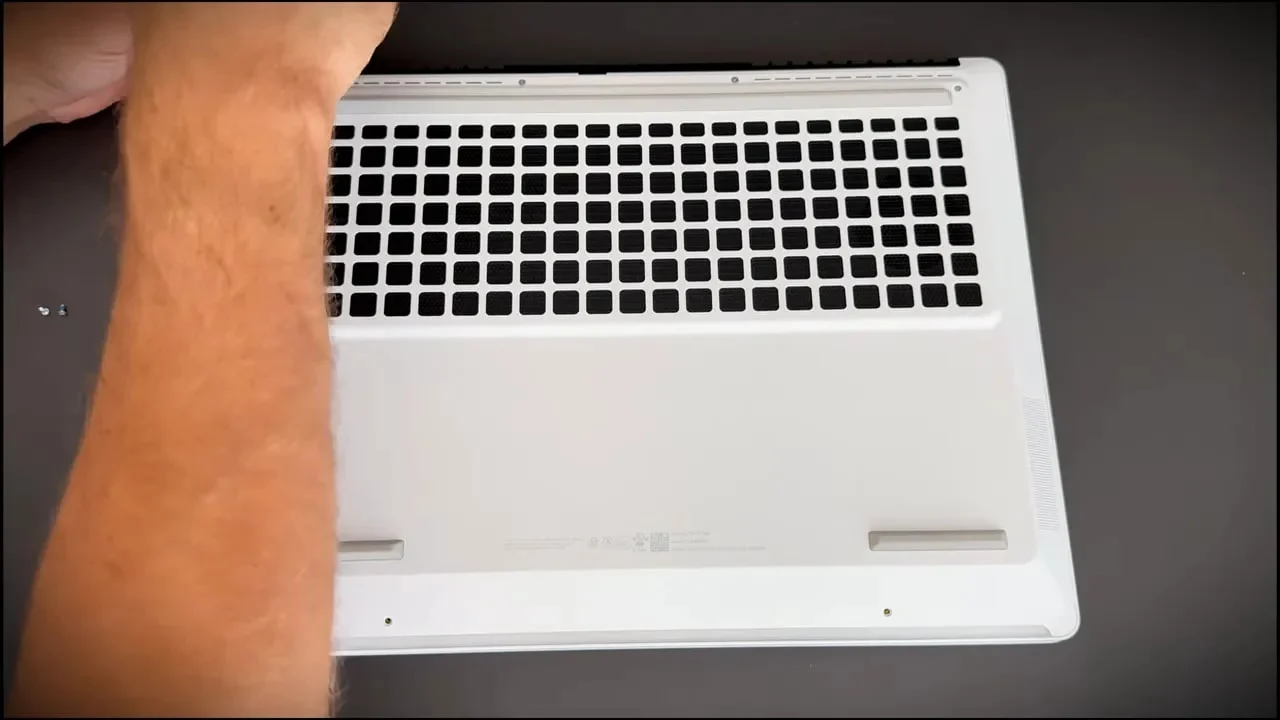
Shut down, unplug the charger, flip the laptop, and grab a small Phillips screwdriver and a plastic pry tool or an old bank card.
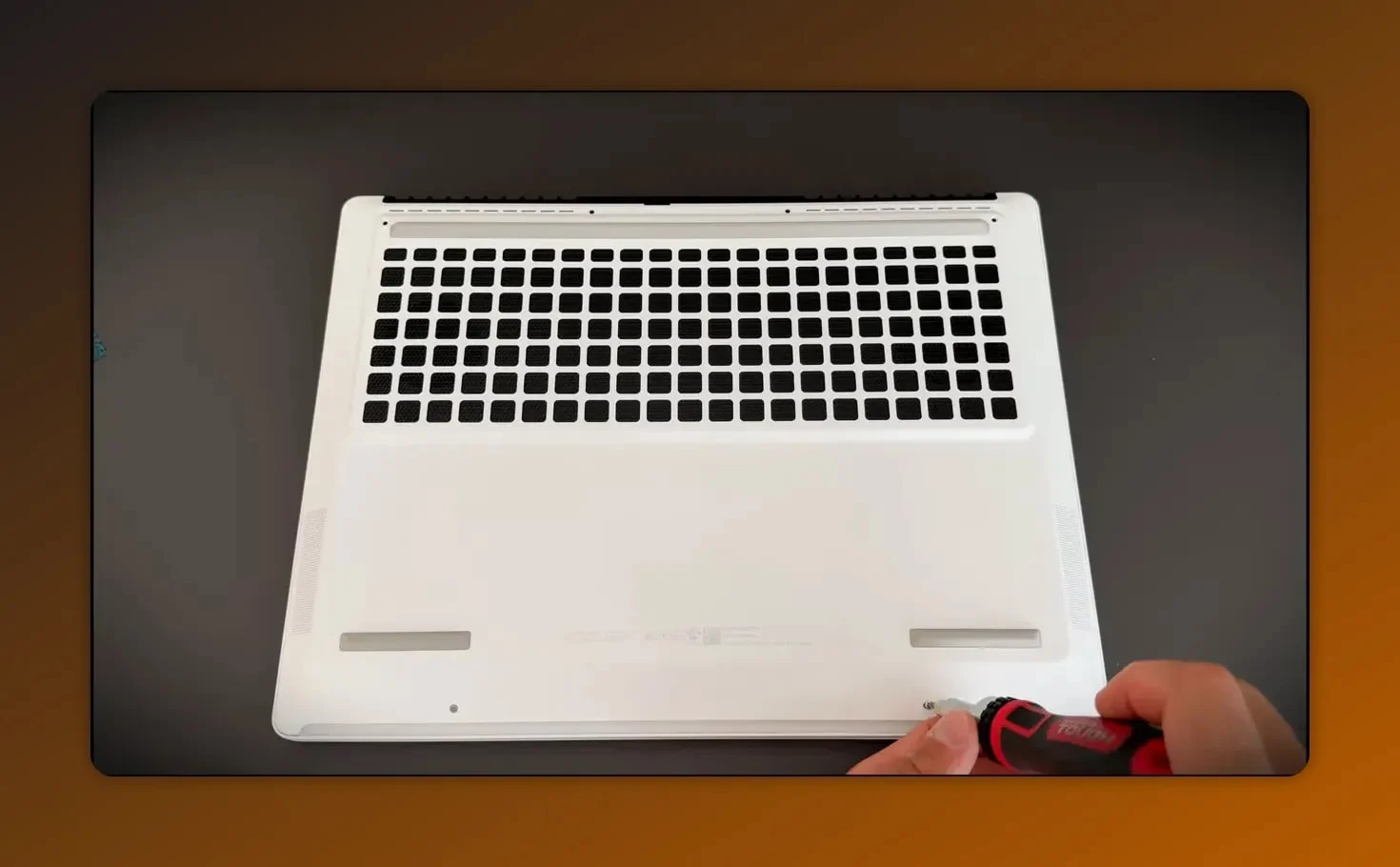
Remove the Back Panel
Unscrew the back panel screws, then gently pry the cover off using the card or plastic tool. It feels a bit like you're breaking something — that's normal during that first pop.
Disconnect Power
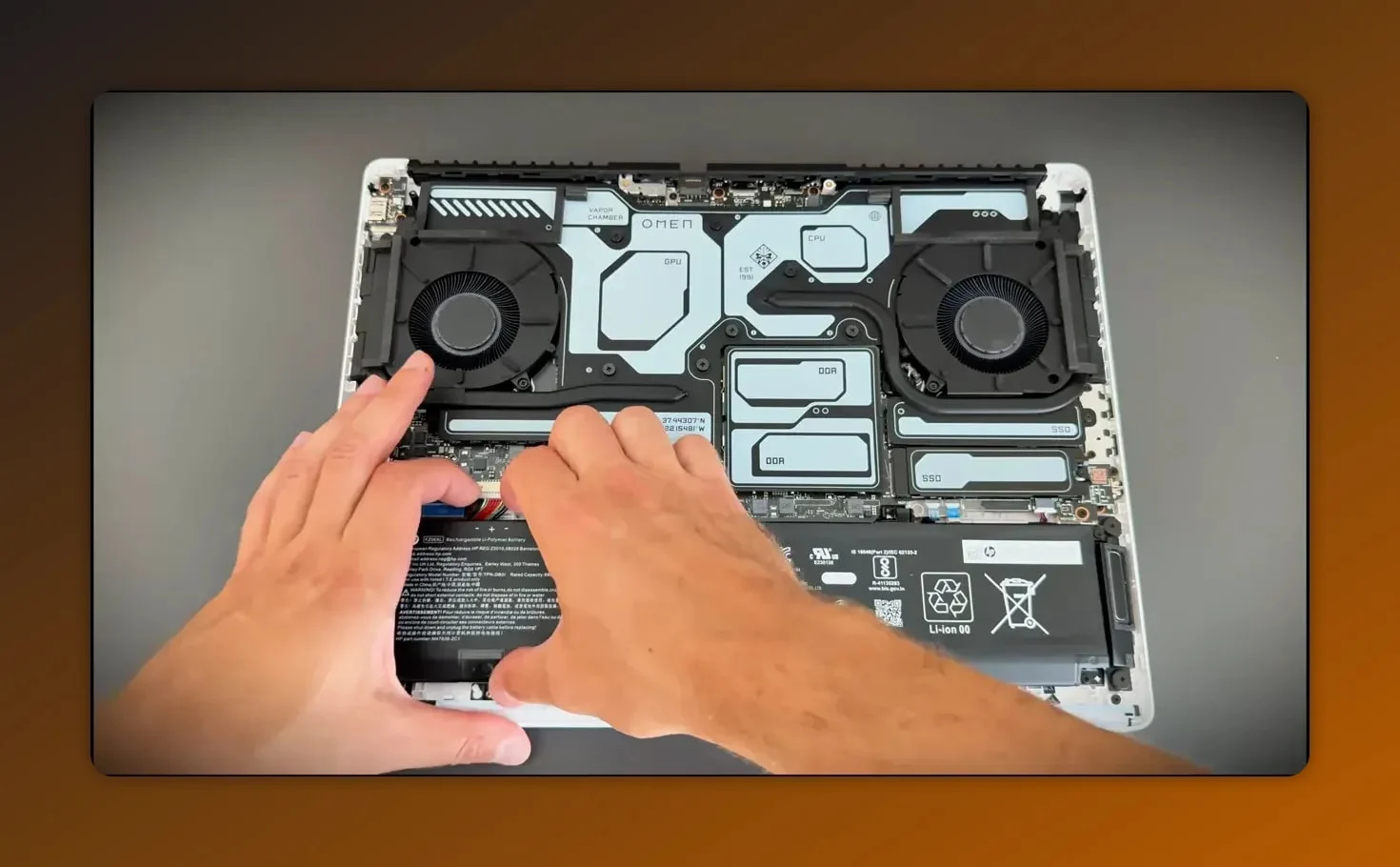
Locate the battery cable and unplug it before touching anything else. This is crucial. Don't skip this step.
Swap the RAM
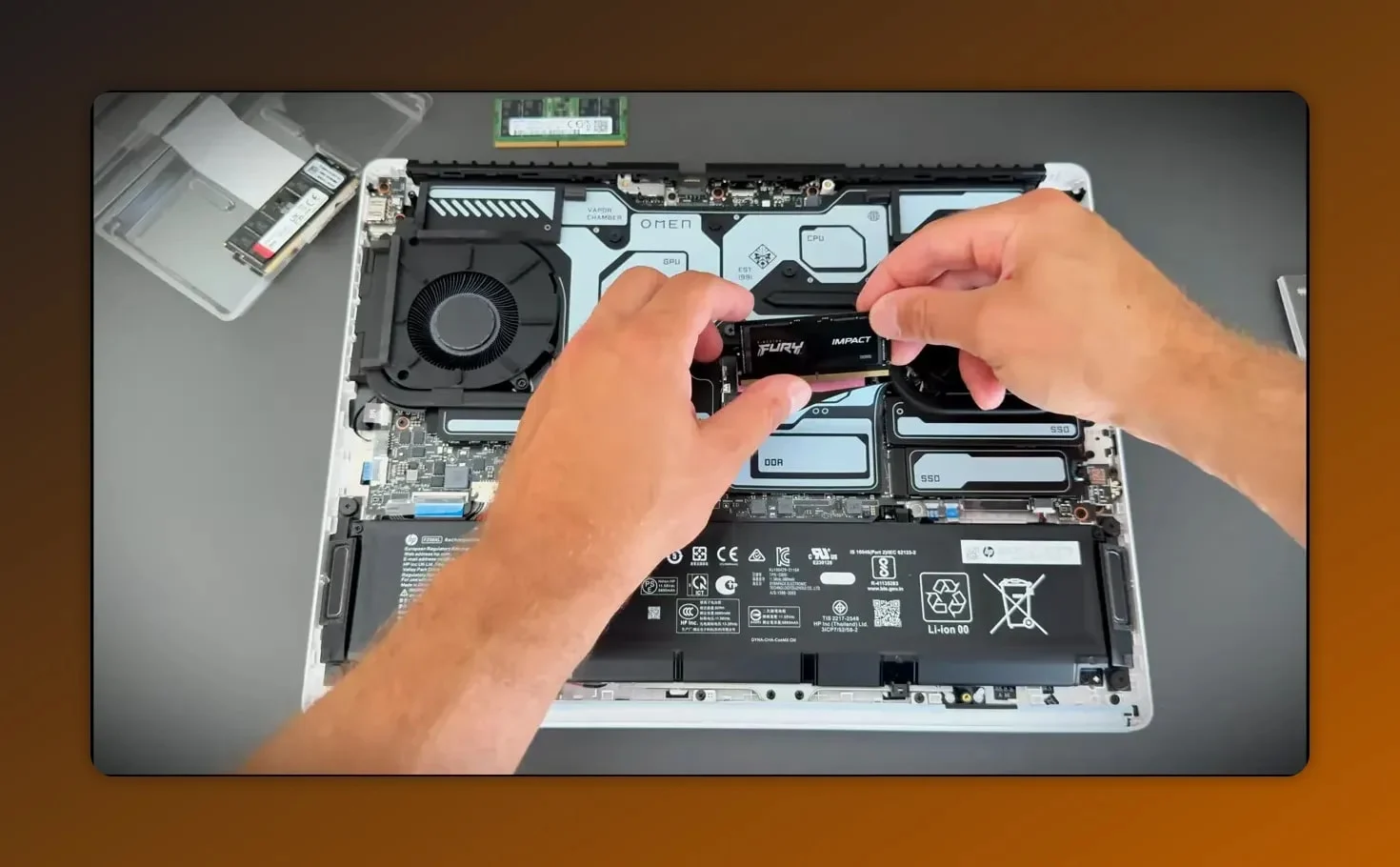
Release the SO-DIMM clips and remove the existing sticks. Behind the memory area you'll see some protective pads. Leave them alone; don't touch them. Slide the new Kingston FURY modules into the slots at an angle and press down until you hear a satisfying click.
Install the SSD
Unscrew the small metal cover over the primary M.2 slot, slide in the Samsung 990 EVO Plus, then replace the metal plate with its pad. Work slowly—precision beats confidence here.
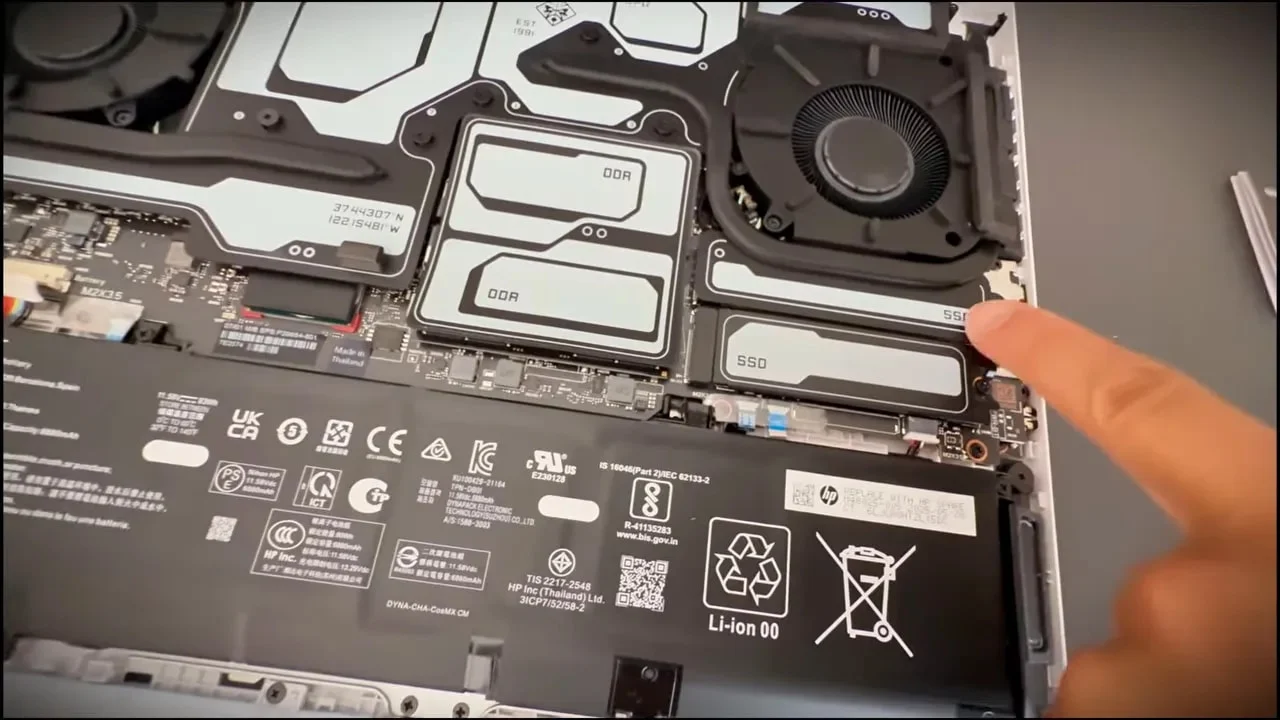
Note on the second SSD slot: The Omen Max 16 has a second slot, but it's tucked behind the cooling assembly. Technically present but practically hard to access without a teardown. I recommend going big on the first M.2 slot rather than wrestling with the hidden one.
Button It Up
Reattach the battery cable, set the back cover in place until you hear soft clicks, then reinsert the screws.
Hardware done. That was quick.
First Boot and Initial Checks
When you power on after the upgrade, don't panic if the screen stays black for a moment. The system may take a bit to register the new hardware. Once it boots, run a couple of checks:
- Open CPU-Z to confirm memory capacity, frequency, and timings.
- Download Samsung Magician to verify the SSD health and firmware status.
- Enter BIOS to make sure the system sees the new modules and adjust XMP/EXPO or memory profiles if needed.
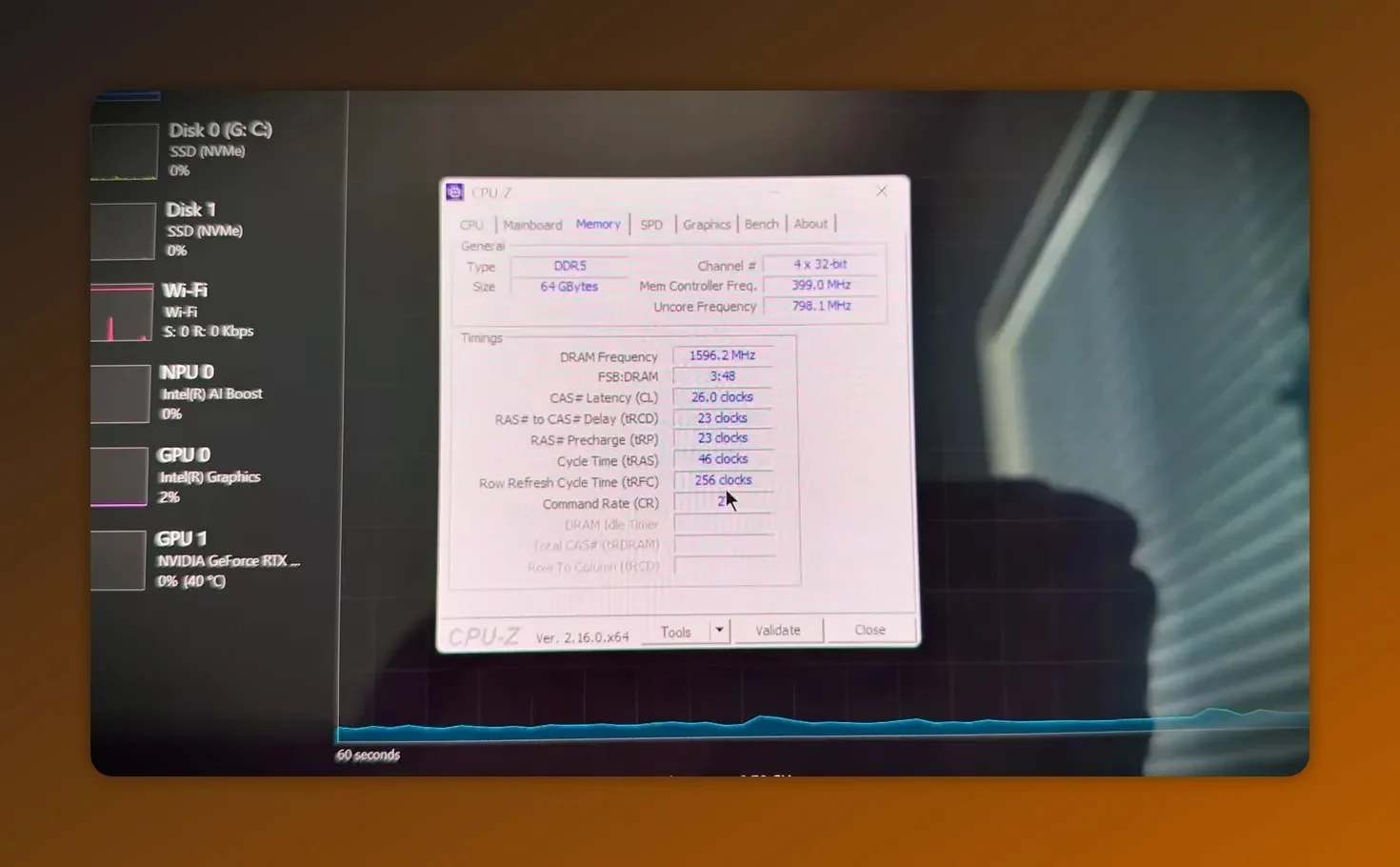
Setting Up Storage in Windows
After the physical work and a successful boot, you need to format the new drive in Windows.
- Open Disk Management.
- Locate the new drive—typically listed as unallocated.
- Create a New Simple Volume and follow the wizard: choose a drive letter, format as NTFS or exFAT, and give it a clear label.
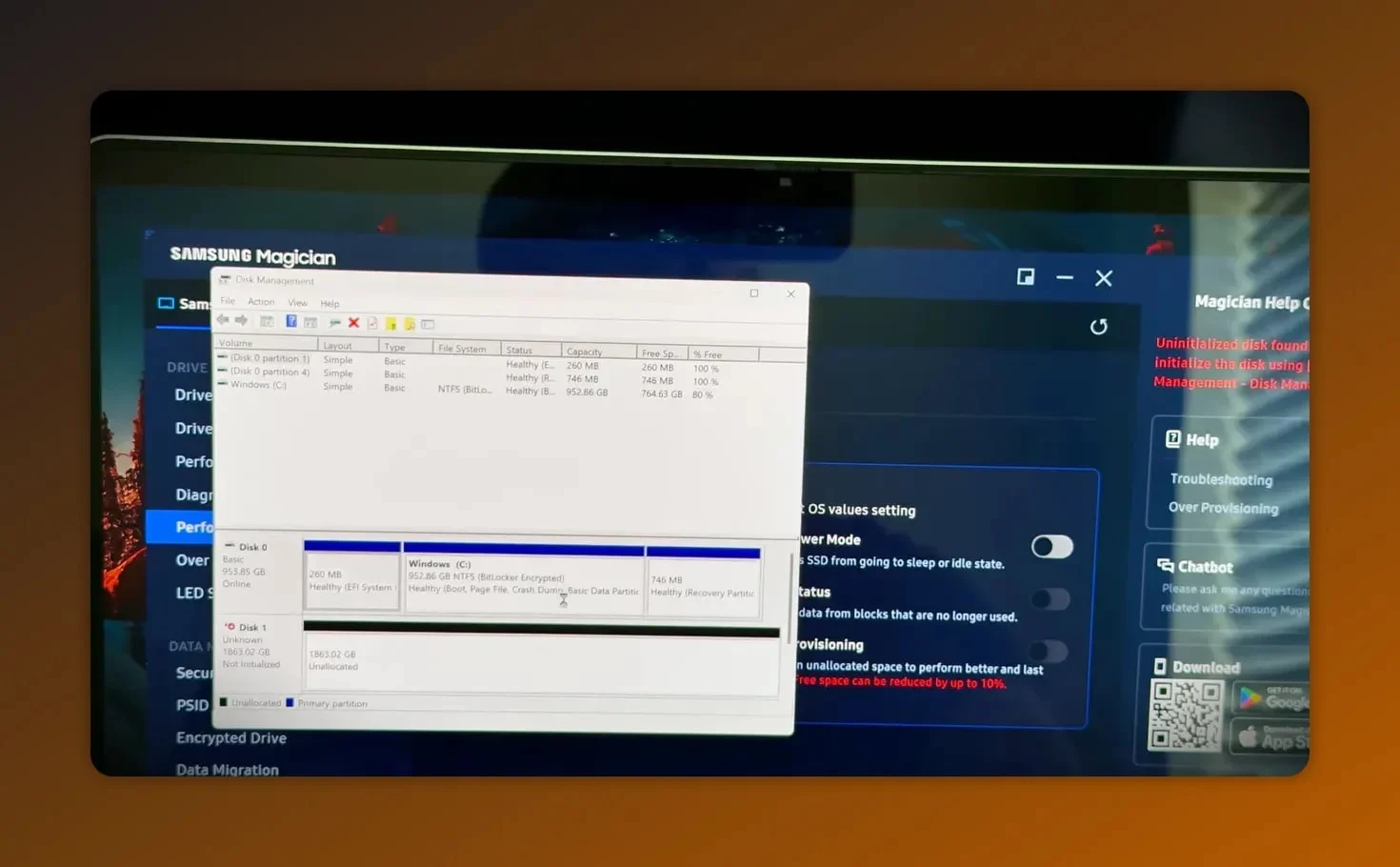
That's it. The drive will now appear in File Explorer and be ready for apps, games, or project data.
Performance and Real-World Impressions
After upgrading with the Kingston FURY DDR5 and Samsung 990 EVO Plus, my daily experience changed in meaningful ways. Cold starts, software launches, and large file moves are noticeably faster. Memory-heavy workloads like running multiple virtual machines or having a ridiculous number of browser tabs feel effortless.
The Kingston FURY sticks run at 5600MT/s reliably and are recognized correctly by the motherboard. The Samsung 990 EVO Plus gives excellent sustained write speed for large transfers and fast gaming load times. Together they provide a responsive, future-proofed platform for a few years.
Pros and Cons
Pros
- Big performance jump for multitasking and load times
- Reliable parts: Kingston and Samsung are proven brands with good firmware and software support
- High capacity avoids daily storage juggling—2TB plus 64GB RAM is comfortable for most power users and high-end gaming
Cons
Manual steps required: Careful handling of components is essential to avoid damage
Hidden second SSD slot: Hard to reach, meaning the second M.2 is effectively inaccessible unless you're ready to dismantle the cooler assembly
Warranty concerns: Depending on your region and warranty terms, opening the laptop might affect warranty. Check HP's policy.
Who Should Consider This Upgrade?
This upgrade is a solid fit if you:
- Use your gaming laptop for content creation, software development, or heavy multitasking
- Want faster load times in games and apps without replacing the whole system
- Prefer a straightforward, cost-effective performance enhancement with proven components
If your needs are light—email, streaming, and document editing—the stock configuration might be enough, but this upgrade dramatically improves the experience for power users.
Tips, Gotchas, and Final Recommendations
Update BIOS first: I recommend updating the BIOS before you start. A newer BIOS often improves RAM compatibility and speeds up post-upgrade recognition.
Unplug the battery: Repeating this because it cannot be overstated. Do not skip disconnecting the battery.
Leave protective pads alone: They're positioned to help with cooling. Touching or repositioning them can reduce efficiency.
Go big on the primary M.2: Given the practical difficulty with the second slot, install a large SSD up front if you plan to store lots of games and media.
Run checks: Use Samsung Magician and CPU-Z to confirm correct operation after upgrading.
Price and Value
Price is always a moving target, but generally the combination of Kingston FURY DDR5 64GB and Samsung 990 EVO Plus 2TB is a balanced investment in performance. You get large capacity plus fast storage without the premium of boutique laptop upgrades. For me, the extra responsiveness and storage convenience justify the cost.
Overall Recommendation
If you want a tangible, practical boost for your Omen Max 16, upgrading with Kingston FURY RAM and a Samsung 990 EVO Plus SSD is one of the best moves. It's not complicated, it yields immediate benefits, and it extends the usefulness of the laptop substantially. Take your time during the physical install, follow the battery-disconnect rule, and update your BIOS before beginning.
FAQ
Is the RAM upgrade straightforward for beginners?
Yes. Replacing SODIMM memory on the Omen Max 16 is straightforward: power down, unplug the battery, release the clips, and slot the new RAM. Just avoid touching protective pads and be gentle when reinstalling the cover.
Can I use any NVMe SSD when upgrading?
Most modern NVMe PCIe 4.0 M.2 SSDs work fine. I used the Samsung 990 EVO Plus because of its performance and reliability, but any reputable PCIe Gen 4 drive with the right form factor should work. Confirm physical clearance and that the laptop recognizes the drive in BIOS.
Do I need to update BIOS before installing new memory or SSD?
It's advisable. Updating the BIOS beforehand can improve memory compatibility and ensure the laptop recognizes new hardware cleanly on first boot.
What should I do if the laptop doesn't boot after the upgrade?
First, power off and reconnect the battery, then check that RAM and SSD are fully seated. Try booting into BIOS to confirm the parts are detected. If a black screen persists for a short time, give it a minute. If nothing appears, reseat the modules and double-check BIOS settings and connections.
Will upgrading void my HP warranty?
It depends on your warranty terms. Many manufacturers allow user-upgradeable components like RAM and storage without voiding the warranty, but you should check HP's official policy or contact support to be certain.
Is the hidden second SSD slot usable?
Technically yes, but it's tucked behind the cooling system and difficult to access without partial disassembly. For practical purposes, plan your main storage needs around the accessible primary M.2 slot.
Closing Thoughts
Upgrading your HP Omen Max 16 gaming laptop with Kingston FURY RAM and a Samsung 990 EVO Plus M.2 SSD is a high-value enhancement that brings tangible speed and capacity benefits. The process is straightforward if you follow the safety steps: disconnect the battery, respect the cooling materials, and update your BIOS. If you want a powerful, responsive laptop without replacing the whole machine, this is one of the best upgrades you can make.
Related reviews: MacBook Pro M5 Max vs HP Omen (RTX 5080) and Wavlink UTD58 Thunderbolt 5 dock review.
Kingston FURY 64GB DDR5
Samsung 990 EVO Plus 2TB